What Actually Changes
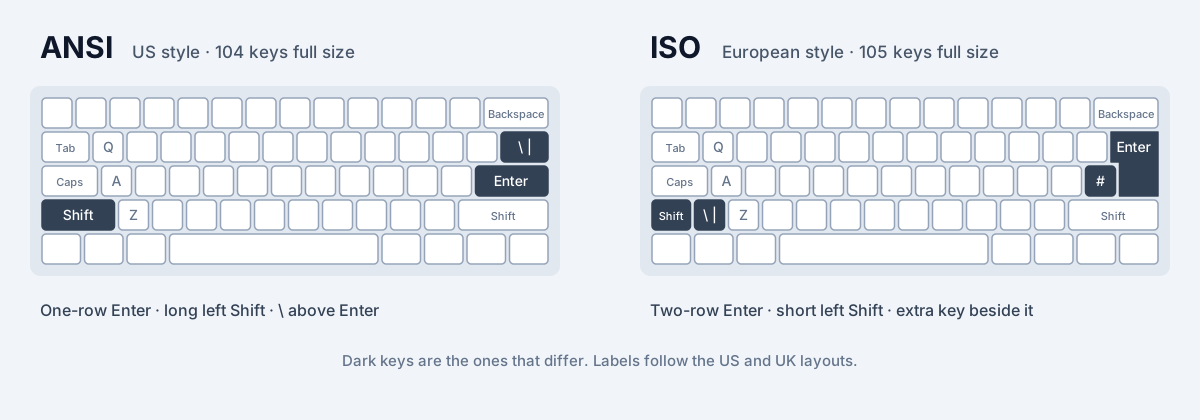
If you have not already, read ANSI vs ISO keyboards for the full picture. In short, three areas change and everything else stays put.
- Enter: one row and wide on ANSI, two rows and taller on ISO, with its home-row part one key further right.
- Left Shift: long on ANSI, short on ISO with an extra key between Shift and Z.
- The backslash area: on ANSI the \ key sits above Enter; on ISO there is no key there, a key appears to the left of Enter, and on a UK layout \ moves to the extra key by left Shift.
Separate the Shape Change From the Layout Change
Many people switch shape and layout at the same time, for example moving from a US keyboard to a UK one. Those are two separate changes, and it helps to know which mistakes come from which.
Shape mistakes are about reach: missing Enter, typing a stray character instead of Shift. Layout mistakes are about which symbol is on which key. Between US and UK QWERTY, for example, " and @ swap places (Shift+2 types " on UK and @ on US), Shift+3 types £ on UK, and # gets its own key. Letters are identical on both.
Keep the layout you know while you adjust to the new shape, if you can. If your fingers know US QWERTY, you can run the US layout on an ISO keyboard: every letter and most symbols stay where your fingers expect, and only the reaches change. Once the reaches feel normal, switch the layout too if you need it.
Drill 1: Retrain the Enter Reach
Enter is the key you will miss most in the first week. Going from ANSI to ISO, your little finger stops one key short and presses the key to the left of Enter (# on UK layouts). Going from ISO to ANSI, a reach aimed slightly high lands on the backslash key, because on ANSI that key sits where the top half of ISO's Enter would be.
Open any plain text editor and type short lines, pressing Enter after each one: single words, then short phrases, then full sentences. Watch the result, not your hands. Each stray # or \ shows exactly how far off your reach was. A few minutes a day for several days is usually enough to move the reach.
- ANSI to ISO: push your little finger one key further right than feels natural. Aim for the right edge of the key, not its middle.
- ISO to ANSI: keep your little finger on the home row. Enter is directly to the right of the ' key; there is no need to reach up.
- Type with your hands anchored on the home row. Peeking at the keyboard teaches your eyes the new position, not your fingers.
Drill 2: Fix the Left Shift Habit
Moving from ANSI to ISO, left Shift is the error that lasts longest. On ANSI your little finger can press Shift almost anywhere along a long key. On ISO, the same lazy reach often lands on the extra key, which types \ on a UK layout or < on a German or French one, and the capital letter you wanted comes out lowercase.
The fix is to move your reach outward, toward the edge of the keyboard. Practise with text that uses capitals typed with the right hand, since those are the ones that need left Shift: Hello, Jones, Kate, London, Mumbai, Oslo, Paris. Type them in a list, slowly at first, and check every capital.
If you still hit the extra key, use right Shift for a while for right-hand capitals. Some touch typists use the opposite-hand Shift all the time anyway, and it removes the problem entirely.
Going the other way, from ISO to ANSI, left Shift is easy: the long ANSI key catches a reach aimed at either the short Shift or the extra key. The thing to unlearn is any habit of pressing the extra key on purpose, which simply presses Shift on ANSI.
Drill 3: The Moved Symbol Keys
If you code or write file paths, the backslash and its neighbours matter. On a US layout, \ is above Enter. On a UK layout on an ISO keyboard, \ is the extra key by left Shift and # has its own key left of Enter. On German and French layouts, \ is typed with AltGr (AltGr+ß on German, AltGr+8 on French).
Write a short practice text that uses the symbols you keep missing, for example a few Windows file paths, some # headings and a few comparisons with < and >. Paste it into a custom test (Custom text in the Typing test category on settings) and type it until the symbols stop costing you a pause. Ten minutes on targeted text does more than an hour of general typing, because general text barely uses those keys.
SureTyping's QWERTY punctuation and numbers course covers the wider symbol set once the reaches above feel settled.
Practise on the Shape You Actually Have
An on-screen keyboard that shows the wrong shape works against you while you retrain. If the picture shows a one-row Enter while your keyboard has a two-row one, every glance at the screen reinforces the old reach.
SureTyping's keyboard shape setting, in the Keyboard category on settings, has three options: Auto, ANSI and ISO. Auto switches to ISO as soon as you press the extra key next to left Shift, and otherwise uses the shape your layout usually comes on. If you are using a layout on a shape it does not normally come on, such as US QWERTY on an ISO keyboard, set the shape yourself. The typing test, lessons, the AI Trainer and the keyboard layout pages then all draw your real keyboard.
It also helps to turn on the on-screen keyboard while you adjust (Keyboard, in the While typing category). Once Enter and Shift feel automatic, you can turn it off again.
Which Layouts Are Affected?
Every layout is affected by the shape change in the same way, because Enter, left Shift and the extra key are outside the letter block. Letters in QWERTY, Dvorak, Colemak and the other alternative layouts stay in the same positions on both shapes.
The exceptions are layouts that use the extra key for something important. Some alternative layouts and mods, including the ISO version of Colemak-DH, put a letter on the extra key or shift the bottom row toward it. If you use one of those, a change of shape also moves a letter, and you should treat it as a small layout change. Which layout goes with which shape explains how this works for Dvorak and Colemak.
How Long Does It Take to Adjust?
Because the letters do not move, most typists find an ANSI to ISO switch far easier than learning a new layout. Expect a week or two of occasional Enter and Shift misses, with most of the improvement in the first few days of deliberate practice. Your overall speed should barely change; it is your accuracy that dips and then recovers.
Switching back and forth every day, for example ISO at work and ANSI at home, is harder at first but very doable. Many people end up comfortable on both, much as drivers get used to two different cars. The drills above, done on each keyboard, speed that up.
A One-Week Plan
If you want a simple routine, try this for the first week on a new shape. It takes ten to fifteen minutes a day.
- Days 1 and 2: Enter drill and Shift drill, five minutes each, slowly and accurately.
- Days 3 and 4: a custom test with the symbols you use, then a few normal typing tests with the on-screen keyboard showing your shape.
- Days 5 to 7: normal practice. Return to a drill only for the key you still miss.