
Why Does Typing Ergonomics Matter?
The hands, wrists, and forearms are not designed for sustained repetitive motion in a fixed position. Typing does not stress any single movement heavily — the force per keypress is minimal — but it does involve high repetition of a narrow range of movements over long sessions. Without adequate position variation, rest, and load distribution, small stresses accumulate into injury.
Repetitive strain injuries related to keyboard use are among the most common workplace injuries in developed economies. The most frequently reported are carpal tunnel syndrome (median nerve compression at the wrist), tendinitis (inflammation in the tendons of the fingers and wrists), and de Quervain's tenosynovitis (affecting the thumb tendons). All three are significantly more common in people who type with poor wrist position or inconsistent rest.
The Fundamentals: Hand and Wrist Position
The single most important ergonomic principle for typists is keeping the wrists neutral — meaning neither bent upward (extension) nor downward (flexion) while typing. Most standard keyboard setups encourage wrist extension by placing the keyboard flat or tilted away from the user. This puts the carpal tunnel under pressure on every keystroke.
The correct resting position is with the wrists floating slightly above the keyboard rather than resting on a wrist rest during active typing. Wrist rests are appropriate for pauses, not for use while keys are being pressed. Keep the elbows at approximately 90 degrees or slightly more open, with the upper arms close to the body.
- Wrists neutral: neither bent up nor down during active typing.
- Forearms roughly parallel to the floor or angled very slightly downward.
- Elbows at 90 degrees or slightly open — not cramped against the body.
- Shoulders relaxed — no hunching or elevation.
- Wrist rests for pauses between typing, not while actively typing.
Desk and Chair Setup
Chair height should allow the feet to rest flat on the floor and the thighs to be roughly parallel to the ground. If the chair cannot be adjusted to achieve this, use a footrest. The chair back should support the lumbar region — the inward curve of the lower back — without forcing the spine into an unnatural position.
The keyboard should be positioned so the elbows are at roughly 90 degrees without the arms reaching forward significantly. For most people this means the keyboard edge is close to the body, not pushed to the back of a deep desk. Keyboards placed too far forward force the shoulders to reach continuously, which contributes to upper back and neck pain over time.
Monitor height is often overlooked in keyboard ergonomics, but eye level affects head and neck position, which connects to shoulder and arm tension. The top of the monitor should be approximately at eye level, with the screen about arm's length away. Looking down at a low screen for hours shifts the head forward and creates sustained load on the neck extensors.
Keyboard Choice and Layout Ergonomics
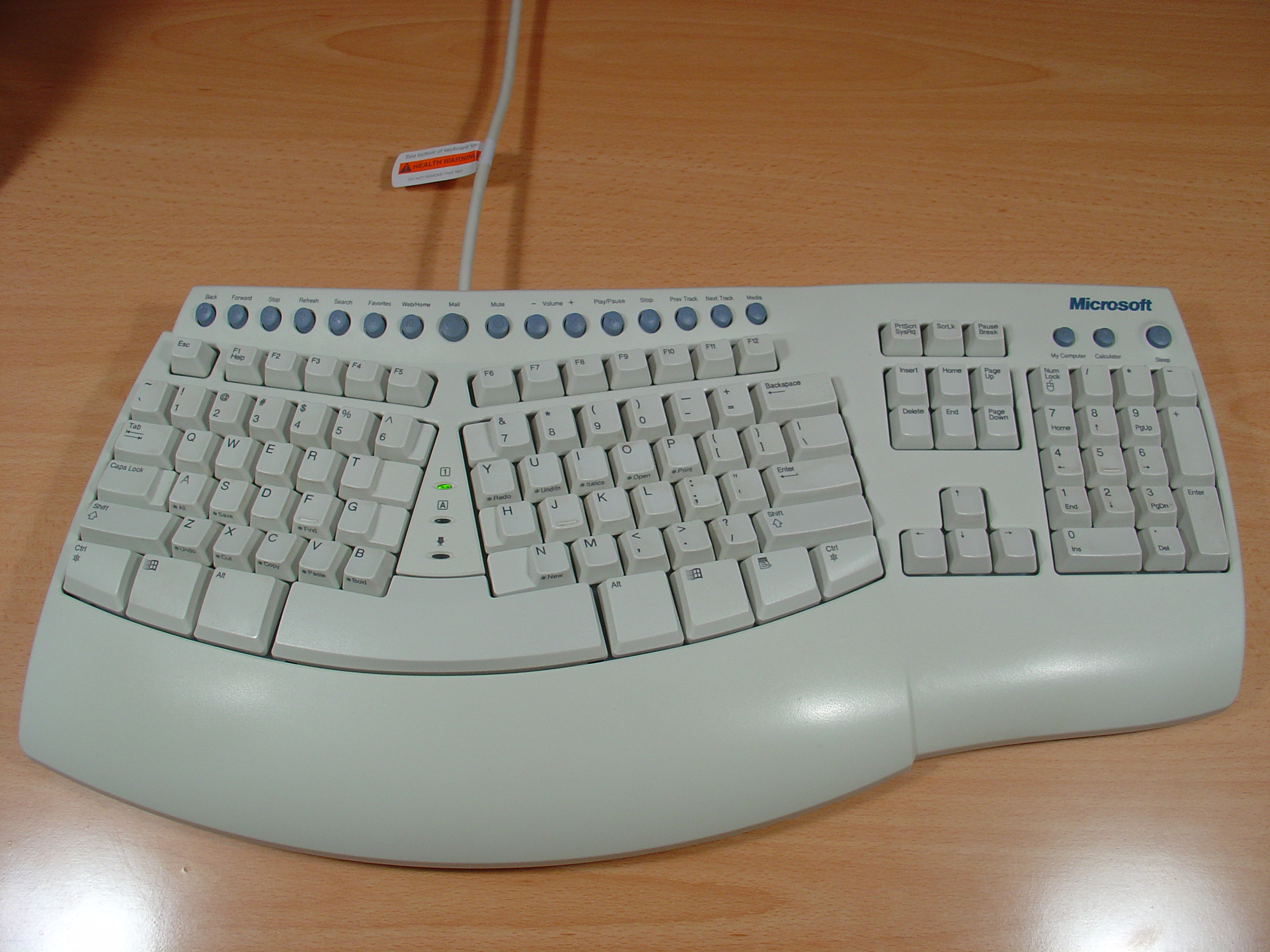
Standard flat keyboards require some wrist extension for most users. Ergonomic keyboards — split designs, tented designs, or negative-tilt designs — aim to reduce this by letting the hands rest in a more natural position. The benefit is real but requires an adjustment period, and the difference matters most for high-volume daily typists rather than occasional users.
Keyboard layout also affects the physical distribution of typing work. QWERTY concentrates significant load on the left hand and directs frequent keys to weaker fingers. Alternative layouts like Colemak and Dvorak were designed with finger movement distance and load balance as explicit goals. The ergonomic benefit of switching layouts is real but often overstated — it primarily matters for people who type very heavily every day and are already noticing fatigue patterns.
What Are the Early Warning Signs You Should Not Ignore?
Mild discomfort that resolves with rest is normal and expected after heavy typing sessions. Pain or tingling that persists after rest, spreads up the forearm, or occurs during typing that was previously comfortable is a different signal and should not be pushed through.
Specific symptoms worth taking seriously: numbness or tingling in the fingers (especially the thumb, index, or middle finger — median nerve territory), pain in the wrist that worsens with repetitive movements, aching forearms after short typing sessions, or pain in the base of the thumb. These are early indicators of developing repetitive strain injuries.
Addressing setup and technique early is far easier than managing an established injury. If symptoms are already present, consulting a physiotherapist or occupational therapist who works with keyboard-related injuries is the right move — not continuing to type through pain while hoping it resolves.